

PlayLive gives players in South Africa full casino access through a mobile website. No dedicated Android app, iOS app, APK file, or App Store download is available. Open PlayLive in a modern mobile browser and sign in with your regular account details. The site works on Android phones and tablets as well as iPhones and iPads.
Android access usually runs through Chrome. Safari handles the same job on iOS. PlayLive carries 2,500+ games on mobile, together with bonuses, payments, and customer support. Nothing needs to be installed, so the casino does not occupy app storage. Website updates appear automatically. On a South African mobile connection, PlayLive remains practical when you switch devices or move between mobile data and WiFi.
PlayLive Mobile Access for Android
Android players don't need to search Google Play or change their phone settings. PlayLive runs inside a mobile browser, with Chrome being the most familiar option on most Android devices. The full session takes place on the official website.
This browser based setup has three practical benefits:
- No third party package is needed for PlayLive access.
- No phone storage is needed for a casino app.
- No unofficial application receives device permissions.
When a phone moves between mobile data and WiFi on South African networks, PlayLive remains available through the same account. A supported browser and stable connection cover the basic access requirements.
How to Open PlayLive on Android?
The casino opens after a short browser sequence. Verify the address before entering your login details. Once confirmed, continue as follows:
- Launch Chrome or another modern browser on your Android phone or tablet.
- Type the official PlayLive website address.
- Let the mobile site load.
- Log in or create an account.
- Choose a game and play in the browser.
Don't download files from pages offering a PlayLive APK. No official Android app exists. A third party file may be unrelated to the casino and should never receive your account details.
Saving PlayLive to Your Home Screen
A home screen shortcut places the casino one tap away without installing an app. In Chrome, its icon links straight to PlayLive. Create it from the official website:
- Open the official site in Chrome.
- Tap the browser menu in the top corner.
- Select Add to Home Screen.
- Check the shortcut name.
- Tap Add to confirm.
The new icon opens the PlayLive mobile website. It remains a browser shortcut rather than an installed Android product.
Compatible Android Phones and Tablets
The mobile site works on Android phones and tablets that can run a modern browser. You don't need a particular device brand. PlayLive works through an updated Chrome release or another browser that supports secure websites and modern web features.
Without an installation, PlayLive sets no app storage requirement or stated minimum RAM figure. Your device still needs enough working memory to run its browser and load games. Across South Africa's mobile networks, a stable connection also helps live tables and graphically detailed slots run consistently.
PlayLive Mobile Access on iOS
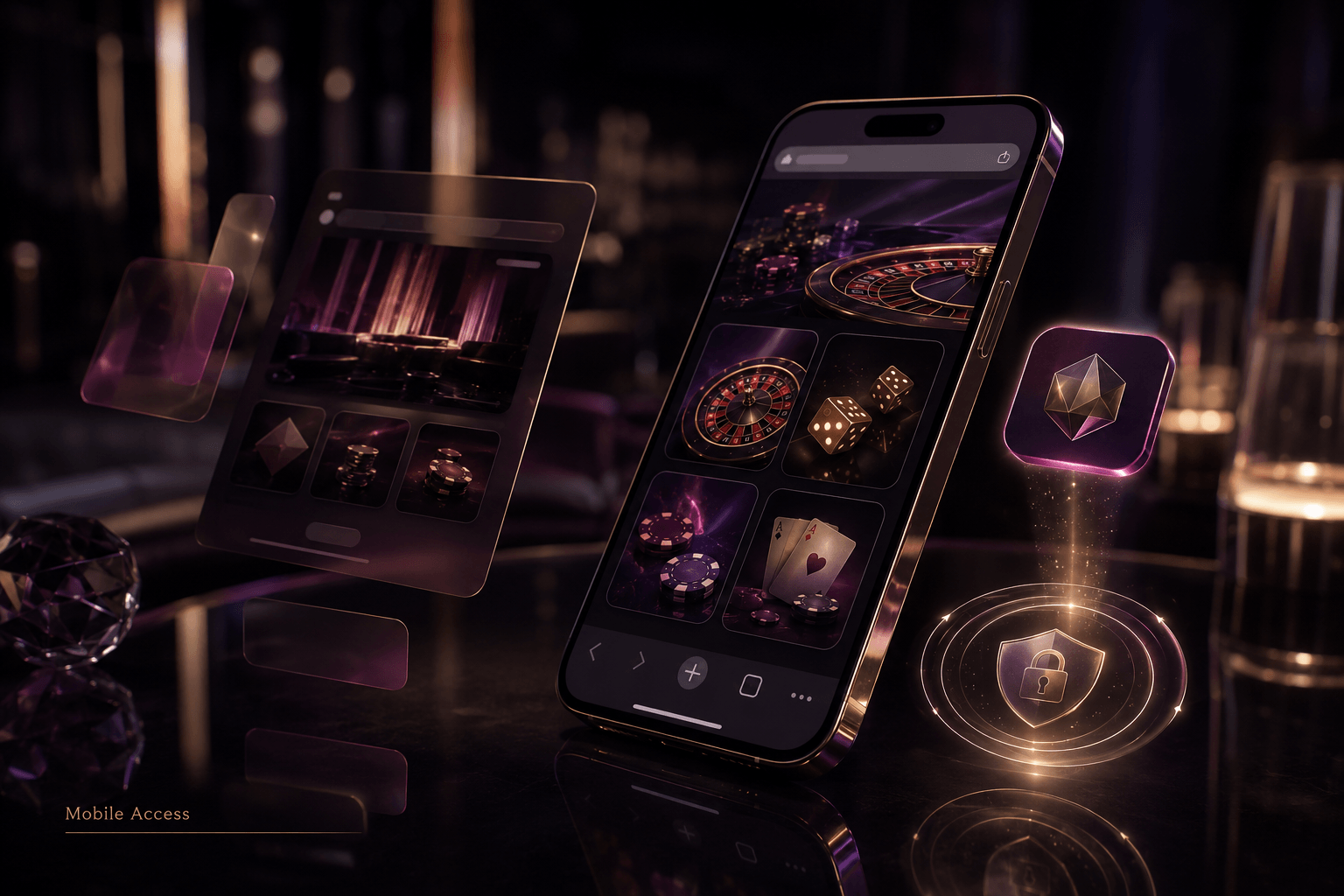
Apple's App Store has no PlayLive application. iPhone and iPad owners use the mobile website through Safari. The browser loads the full casino interface and account tools without a separate download.
Access stays consistent across supported Apple devices. The browser route bypasses the App Store and leaves phone storage free from a casino application. PlayLive can also be saved as a home screen shortcut for quicker entry. South African iPhone and iPad users get an app style icon that still opens the mobile site in Safari.
How to Open PlayLive on iOS?
On an iPhone or iPad, Safari takes you straight to PlayLive. Verify the URL before you sign in or open the payment area. Then follow this sequence:
- Launch Safari on your iPhone or iPad.
- Type the official PlayLive website address.
- Allow the mobile version to load.
- Log in to your account.
- Open the casino section and select a game.
Safari handles the complete session without an App Store download or prior installation.
Saving the Site to Your Home Screen
Safari lets you place a website shortcut beside your regular iOS apps. The result is one tap access to PlayLive without searching your bookmarks or entering the address each time:
- Open the official site in Safari.
- Tap the Share icon.
- Scroll to Add to Home Screen and select it.
- Confirm or edit the shortcut name.
- Tap Add to save it.
The icon launches the PlayLive mobile website through Safari. It does not install a native iOS app, and it won't appear as an App Store application.
Compatible iPhones and iPads
PlayLive works on iPhones and iPads that support a recent version of Safari and modern secure web access. Compatibility isn't tied to a separate model list or application download. The key condition is that the device can load the mobile site.
Because PlayLive stays in the browser, no storage is used for an installed casino app. Safari may still keep normal cache, cookies, and website data. The same account follows South African players between a supported iPhone and iPad, with the mobile casino services remaining available on both.
How PlayLive Website Updates Work
PlayLive applies updates through its website. The process requires no action from you. Changes are available when you next open or refresh the official site.
Automatic updates can cover these parts of PlayLive:
- Casino games and provider content
- Deposit and withdrawal functions
- Bonuses and promotional features
- Customer support tools
Switching between Android and iOS does not create a separate update cycle. PlayLive serves the current website to each supported browser. Always enter through the official address. An old bookmark or home screen shortcut should still lead to the latest site, while an unofficial copy may display outdated pages or misuse your account details.
Advantages of the PlayLive Mobile Site
Browser access removes several tasks that normally come with a casino application. The main PlayLive mobile benefits are:
- No application download or installation
- No app package occupying phone storage
- Automatic updates through the official website
- One account login across supported devices
You can also reach the main services from the same browser session at PlayLive:
- Casino games
- Bonuses and promotions
- Deposits and withdrawals
- Customer support
If you change phones or move between Android and iOS in South Africa, the browser route lets you keep using the same account. Your regular login remains valid in a compatible browser on the official website.
The browser model and a hypothetical native app compare as follows:
| Feature | PlayLive mobile browser | Hypothetical native app |
|---|---|---|
| Installation | Not required | Requires an app installation |
| Phone storage | No app package stored | Uses storage for app files |
| Updates | Applied automatically through the website | May require store updates |
| Android and iOS access | Same site on supported browsers | Separate platform versions may be needed |
| Account access | Same PlayLive login across supported devices | Access depends on each installed version |
| Home screen entry | Optional website shortcut | App icon created after installation |
Mobile Games Available at PlayLive
PlayLive provides a mobile library of 2,500+ titles. The available casino categories include:
- Slots
- Live casino
- Table games
- Blackjack
- Roulette
- Instant games
- Tournaments
Demo mode can also be used on titles that make it available. These sections use your regular mobile account rather than a separate app profile. PlayLive lets you move between categories from a supported phone or tablet.
The provider lineup includes Pragmatic Play, Play’n GO, PGSoft, Betsoft, BGaming, Evoplay, Hacksaw, Playson, Spribe, Spinomenal, Novomatic, and others. Players connecting from South Africa can browse the full mobile lobby and open supported titles directly. Availability may vary within the library, especially for demo play.
How PlayLive Protects Mobile Players
PlayLive applies the same core account protections on mobile and desktop. Each measure has a specific role:
| Protection | What it means on mobile |
|---|---|
| SSL encryption | Protects information sent between your device and PlayLive |
| Secure browser access | Keeps the casino session on the official website |
| KYC standards | Applies the same identity checks to South African mobile accounts as on desktop |
| AML standards | Applies the same account and transaction controls used on desktop |
Your own browsing habits still matter. Open PlayLive through the official URL and check the domain before entering any account details. Never trust a page with an address that does not match the official site. Avoid unofficial application offers as well. Shared WiFi and links received through messages both call for an extra domain check.
PlayLive support for South African players is available daily from 09:00 to 22:00. Contact the team if you need help with mobile access or notice a page that looks suspicious.
Ready to try PlayLive mobile access?
Sign Up NowFAQ
Browser access to PlayLive can behave differently after a phone change, privacy reset, or shortcut problem. These situations do not involve an installed application, so the usual app troubleshooting steps do not apply. PlayLive remains tied to its official website and your existing account.
The most useful questions concern changes to local browser data, older devices that struggle with the site, and saved icons that stop working as expected. Those cases are easy to mistake for account or software failures.
Will Deleting the PlayLive Shortcut Affect My Account?
No. The shortcut is only a link to the PlayLive mobile website, so removing the icon does not delete your account. Open the official site and sign in with your regular details whenever you want to restore access.
Why Was I Signed Out?
Clearing cookies or website data can end the browser session, and some privacy settings may do the same. Return to the official PlayLive site and enter your regular login details. Your account can still be used on supported devices.
What if PlayLive Fails on an Older Device?
Check that the device runs a recent Safari version or another modern browser with secure web access. If PlayLive still does not load, there is no separate native application or APK that can serve as an alternative.
What if the Shortcut Stops Working?
Open the official PlayLive site manually and verify the address first. You can then remove the old shortcut and create a new one through Chrome or Safari. No application update or reinstallation is involved.